How to Schedule Pinterest Posts: Native vs MerivoFlow
How to schedule Pinterest posts with Pinterest’s free built-in scheduler, where its 30-day and 10-pin limits kick in, and when MerivoFlow makes sense.
How to Schedule Pinterest Posts: Pinterest’s Free Scheduler vs MerivoFlow
I built a Pinterest scheduler, so you’d expect me to tell you that you need one.
Most people don’t. I’d rather say that up front.
Pinterest has its own scheduler built in. It’s free, it works, and if you only post a few pins a week, it may be all you ever need. The trouble starts when you want to plan further ahead or batch a lot of pins in one sitting. That’s the gap I built MerivoFlow to fill.
This guide covers both. First, how to schedule Pinterest posts with the native scheduler, step by step. Then its limits, straight from Pinterest’s own help page. Then how bulk scheduling works in MerivoFlow, and an honest take on who should use which.
How to schedule Pinterest posts with Pinterest’s built-in scheduler
Before anything else: Pinterest’s scheduler is a business account feature. Pinterest’s help center says that with a business account, you can schedule standard Pins for future posting.
If you have a personal account, that’s not a dead end. A Pinterest business account is free, and you can either create a new one or convert your personal account. One catch: business accounts are public, so a private personal account has to be switched to public before you can convert it. (If you’d rather not switch, MerivoFlow, which I cover below, works with a personal account.)
Pinterest’s help page has instructions for the web, Android and iOS. Here’s the short version.
On a computer (web)
- Log in to your Pinterest business account.
- Click Create at the top-left of the screen, then Create Pin.
- Upload an image or video. You can select up to 10 images, and Pinterest says each image will create a new pin.
- Fill in the pin details: title, description, link and board.
- Select Publish at a later date and pick the day and time.
- Finish creating the pin.
In the Pinterest app (Android or iPhone)
- Open the app and log in to your business account.
- Tap the plus icon at the bottom of the screen and choose Pin.
- Pick your image or video and tap Next. (Heads-up: if you select more than one image or video in the app, Pinterest stitches them together into a single video pin.)
- Fill in the pin details.
- Next to Schedule date, tap the arrow, choose the date and time, and tap Done.
- Tap Schedule, check the date and time, and tap Schedule again to confirm.
To see what’s queued, go to your profile. Your scheduled pins show up above your published ones, and Pinterest notes it can take a few minutes for a new one to appear. To delete one, tap the three-dot (ellipsis) icon on the pin and choose Delete. All of this comes from Pinterest’s scheduling help page.
The limits of Pinterest’s native scheduler
These limits are where most people start looking for another pinterest scheduler. In Pinterest’s own words, from the same help page:
“You can schedule a Pin up to 30 days in advance. While you can only schedule one Pin at a time, you can have up to 10 Pins scheduled for the future.”
That boils down to three limits:
- 30 days ahead, max. You can’t queue anything for two months from now.
- 10 pins in the queue at once. Once you have 10 waiting, you have to wait for some to publish before you add more.
- One pin at a time. You go through the scheduling flow for each pin.
One more detail worth knowing: once a pin is scheduled, Pinterest lets you change the publish date, title, board, description and link, but not the image or video. If you spot a typo in your graphic, you delete the pin and start again.
When the free scheduler is enough
Plenty of people should just use the native scheduler. Honestly.
If you post a few pins a week, 10 slots covers two weeks of posting or more. If you sit down once a week and schedule the next few days, you’ll rarely hit the 30-day wall. And it costs nothing.
It’s also a good place to start if you’re still figuring out whether Pinterest is worth your time. Here’s something I’ve noticed running MerivoFlow for about a year: when people cancel, the reason usually isn’t the tool. They tell me they liked the product but stopped using Pinterest. That’s useful to know before you pay for anything. Build the habit with the free scheduler first. If the limits start to annoy you, that’s a good sign you’ve outgrown it.
If you’re still in that early stage, my post on the biggest Pinterest scheduling mistakes that hurt your reach covers how to build a simple weekly schedule. Setting up your boards first? Our free Pinterest Board Name Generator suggests board names and matching descriptions from a keyword. No signup needed.
When you’ll outgrow it
It usually happens in one of two ways.
The first is batching. You set aside a Sunday afternoon, design 30 pins, and then find out you can only queue 10. The rest sit in a folder until you remember to come back.
The second is planning ahead. Pinterest users plan early, and seasonal content needs a head start. In my guide on when to start pinning seasonal content, I suggest starting most seasonal pins 60 to 90 days before the date. A 30-day scheduling window doesn’t fit that plan. You end up scheduling Christmas pins a few at a time, month by month.
That second problem is the exact one I built MerivoFlow for.
How to schedule Pinterest posts in bulk with MerivoFlow
MerivoFlow is a web app that does one job: you create Pinterest pins, plan them on a calendar, and it publishes them for you. It’s built on the official Pinterest API and is an approved Pinterest API application. So posting goes through Pinterest’s own integration, with no unofficial workarounds.
According to our documentation, you can schedule as many pins as you want, as far into the future as you need. And unlike Pinterest’s built-in scheduler, MerivoFlow doesn’t require a Pinterest business account. A personal account works.
Here’s how a bulk session works.
- Start the trial and connect Pinterest. Start the free trial from the pricing section, create an account and connect your Pinterest account.
- Upload your images. Under Bulk Upload, drop in a ZIP file or select multiple images. Folders inside the ZIP are fine, and you can mix a ZIP with individually selected images.
- Auto-fill the details from a spreadsheet (optional). Upload a CSV to fill in titles, descriptions, dates and boards for every pin at once. Each row is matched to an image by filename, so the order you uploaded them in doesn’t matter. There’s a Download template link if you don’t want to build the CSV from scratch.
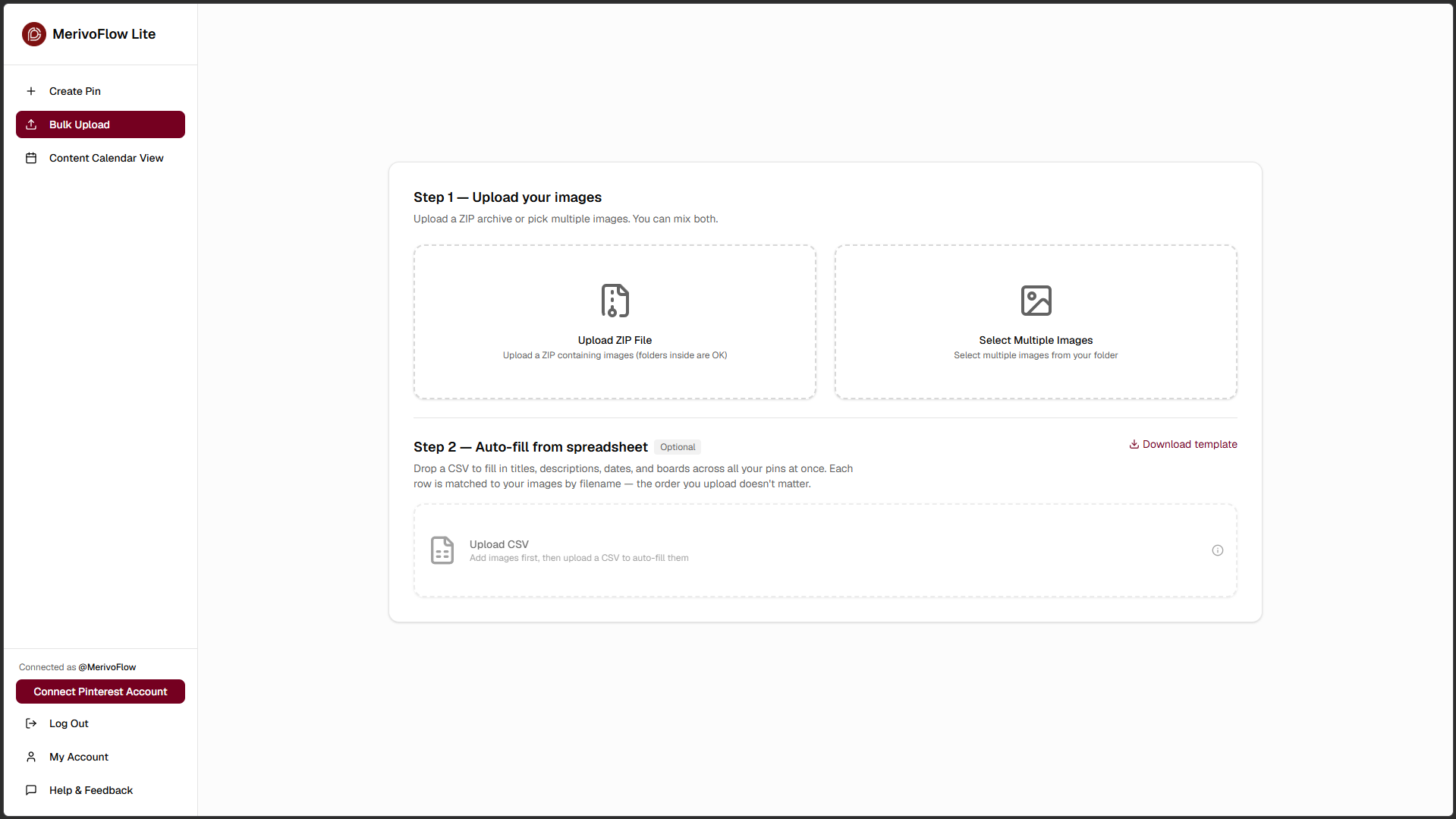
MerivoFlow Bulk Upload screen. Step 1 offers “Upload ZIP File” (folders inside are OK) or “Select Multiple Images,” which can be mixed. Step 2, “Auto-fill from spreadsheet,” accepts a CSV matched to images by filename and has a “Download template” link.
Bulk Upload: add a ZIP and/or individual images, then optionally fill in the details from a CSV.
- Review and fix each pin. After the upload you get a table with one row per pin: title (up to 100 characters), description (up to 800), link, date, time and boards. One pin can go to several boards. Delete any row you don’t want, then click Schedule.
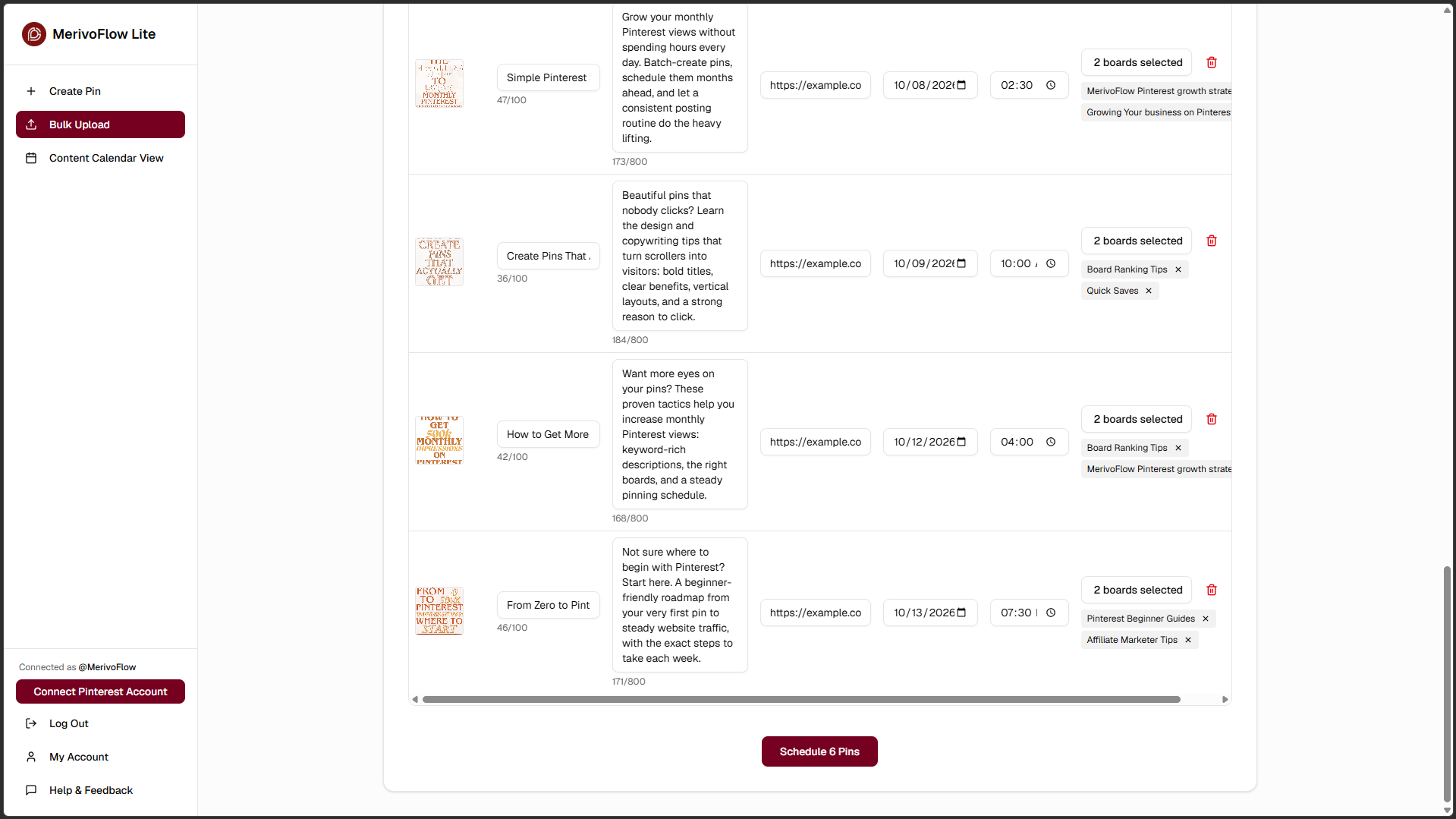
MerivoFlow bulk upload review table. Each row shows a pin image with editable title (100-character limit), description (800-character limit), link, date, time and two selected boards, plus a delete icon. A “Schedule 6 Pins” button sits at the bottom.
Reviewing a bulk upload before scheduling. Each pin here is going to two boards.
- Check the calendar. Every scheduled pin shows up on the Content Calendar, which you can view by month, week or day. There’s also a compact view and a running count of how many pins are set to post.
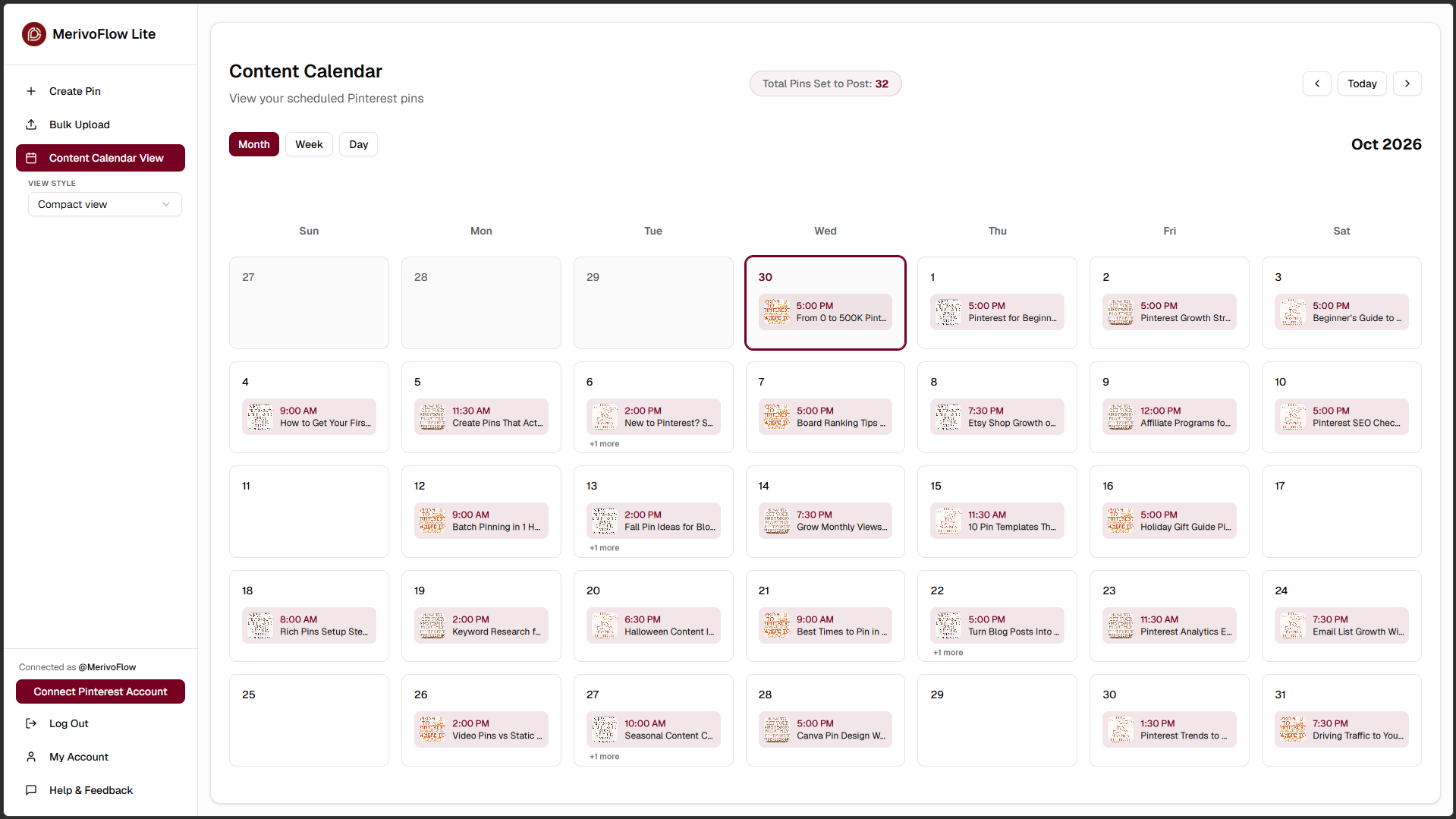
MerivoFlow Content Calendar in month view for October 2026, with Month/Week/Day toggles, a “Total Pins Set to Post: 32” counter, a scheduled pin on most days, and a sidebar with Create Pin, Bulk Upload, Content Calendar View and a Compact view option.
The Content Calendar in month view, with a counter showing how many pins are queued.
- Edit, reschedule or delete from the calendar. Click a pin to change its title, description, boards, link, date or time, or to delete it. One honest caveat: just like Pinterest’s own scheduler, you can’t swap the image once a pin is scheduled. If the graphic needs fixing, delete the pin and create it again.
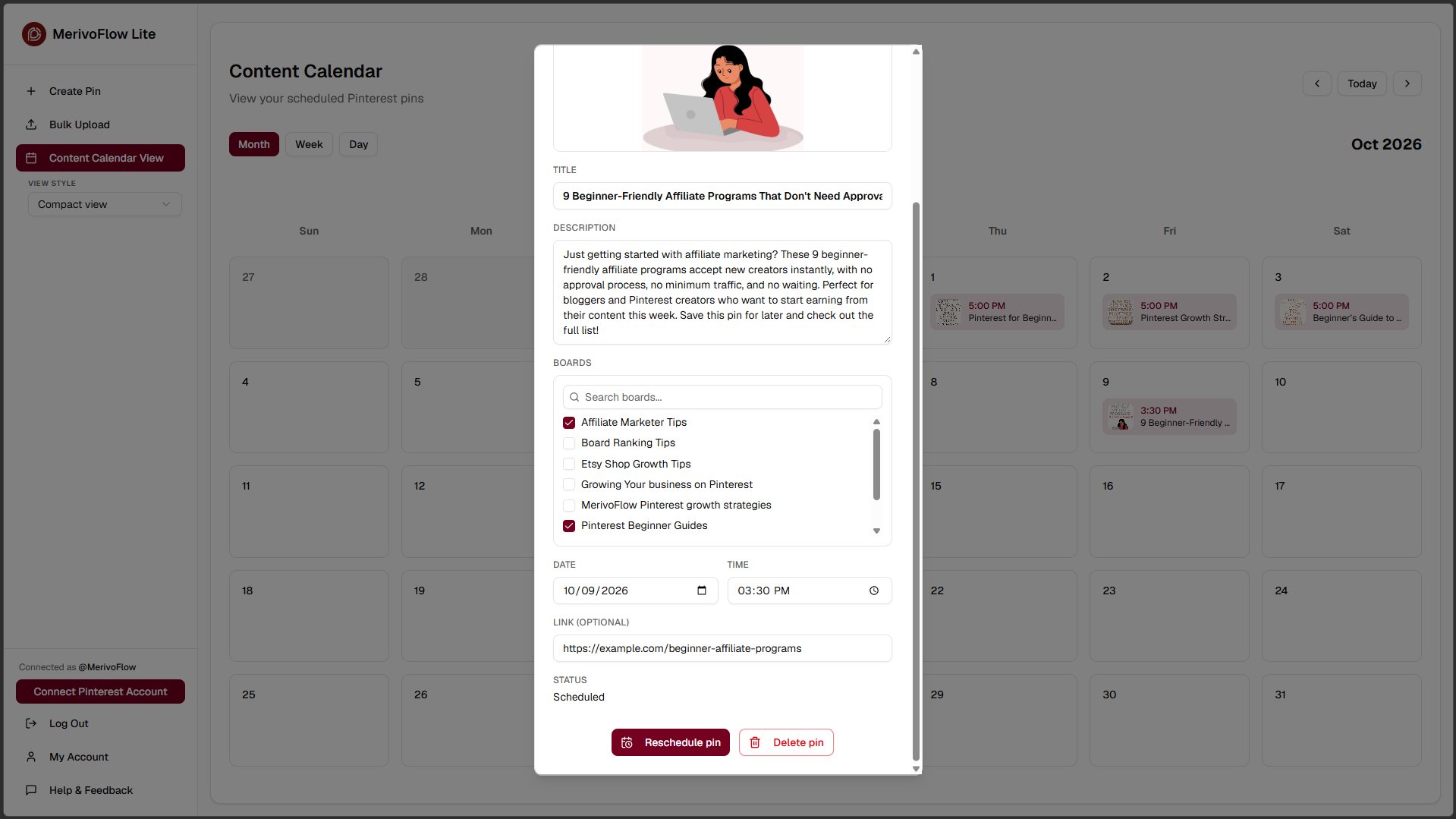
MerivoFlow pin detail window opened from the calendar. It shows the pin image, which isn’t editable, plus editable title, description, board checklist with two boards checked, date, time and optional link. Status reads “Scheduled,” with “Reschedule pin” and “Delete pin” buttons.
Editing a scheduled pin. Everything but the image can be changed.
- Let it publish. MerivoFlow publishes each pin to Pinterest automatically at the time you chose (docs).
Need to schedule just one pin? Use Create Pin: add the image, a title, a description, an optional link and one or more boards, then pick a date and time and click Schedule Pin.
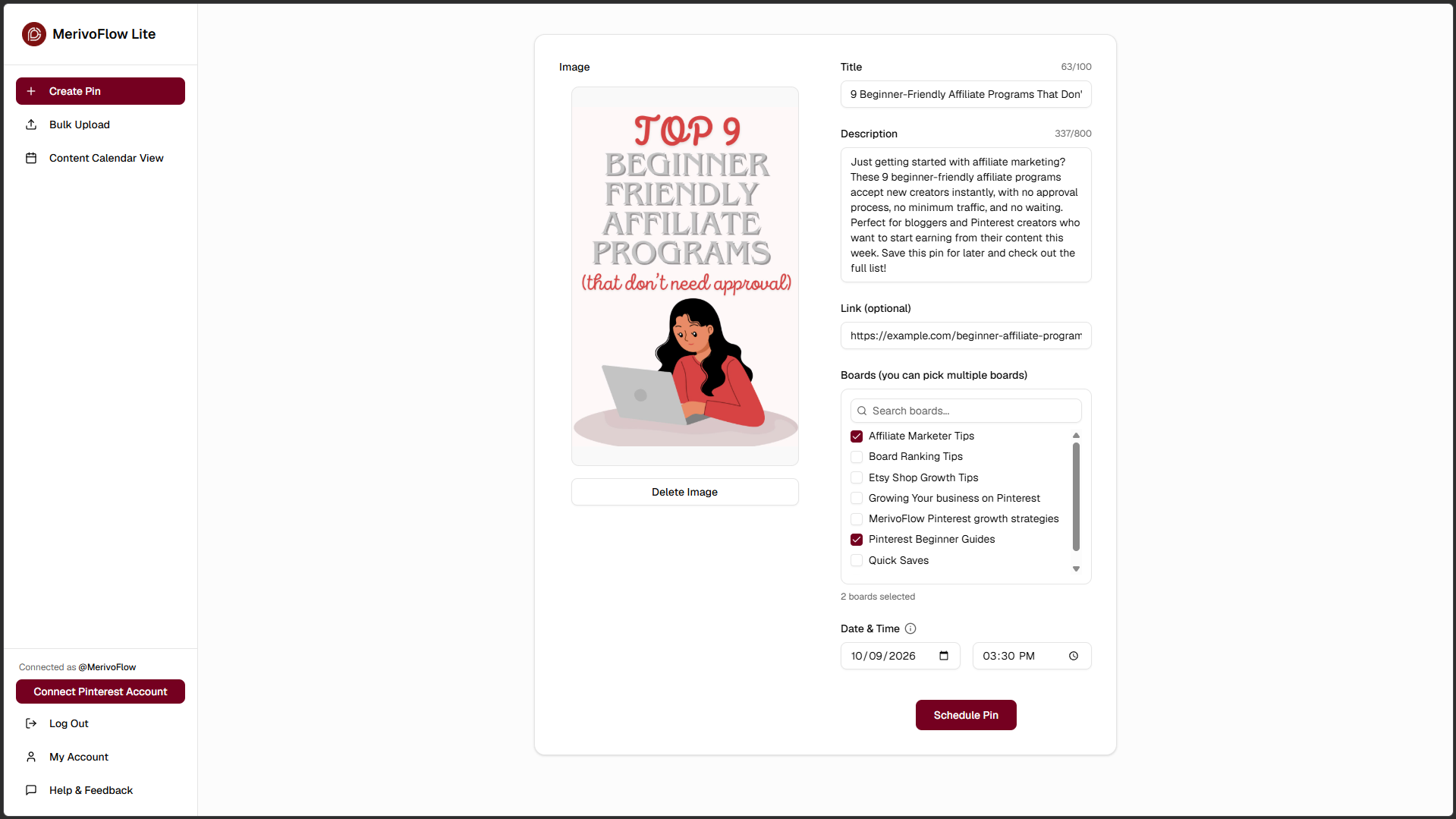
MerivoFlow Create Pin form with an uploaded pin image, a title field (100-character limit), a description field (800-character limit), an optional link, a searchable board list with two boards selected, date and time pickers, and a “Schedule Pin” button.
Scheduling a single pin to two boards at once.
To be clear about what MerivoFlow isn’t: it’s a scheduler and calendar. It’s not a design tool or an analytics dashboard. I kept it small on purpose so it could stay cheap. There’s one plan, MerivoFlow Lite, at $8/month after a 7-day free trial, and you can cancel anytime. Per the docs, you keep access until the end of your billing period.
Pinterest native scheduler vs MerivoFlow
|
Pinterest native scheduler |
MerivoFlow | |
|---|---|---|
|
Cost | ||
|
Business account needed? |
No | |
|
How far ahead | ||
|
Pins in the queue | ||
|
Scheduling flow |
One pin, or bulk upload (ZIP and/or multiple images, optional CSV matched by filename) | |
|
Post one pin to several boards in one go |
Not covered on Pinterest’s scheduling help page |
Yes |
|
Where you see scheduled pins |
Calendar (month, week or day, plus a compact view and a queued-pins counter) | |
|
Edit after scheduling |
Date, time, title, description, boards, link | |
|
Swap the image after scheduling |
No | |
|
Delete a scheduled pin |
Yes, from the calendar | |
|
Where it works | ||
|
How pins get published |
Directly by Pinterest |
Who should use which
Use Pinterest’s native scheduler if:
- You post a handful of pins a week.
- You’re happy scheduling a week or two ahead.
- You’re new to Pinterest and not sure you’ll stick with it yet.
- You mostly pin from your phone.
Use MerivoFlow if:
- You batch-create pins and want them all scheduled in one session.
- You plan seasonal content more than a month ahead.
- You keep running into the 10-pin cap.
- You want to see your whole plan on a calendar.
There’s also a middle path: use the free scheduler until it gets in your way. I’d rather you come to MerivoFlow because you hit a real limit than because a blog post talked you into it.
FAQ
Can you schedule pins on Pinterest for free?
Yes. Pinterest has a built-in scheduler for business accounts, and business accounts are free. You can schedule up to 30 days ahead, with up to 10 pins scheduled at a time.
Why can’t I schedule a pin on Pinterest?
Two common reasons. First, scheduling is a business account feature, so check that you’re logged in to one. Second, you may already have 10 pins scheduled, or be trying to pick a date more than 30 days out. Both are limits of the native scheduler.
Do I need a Pinterest business account to schedule pins?
For Pinterest’s built-in scheduler, yes: scheduling is a business account feature. Business accounts are free. MerivoFlow doesn’t require a business account.
How far in advance can you schedule Pinterest posts?
With Pinterest’s own scheduler, up to 30 days. With MerivoFlow, there’s no limit on how far ahead you schedule.
Can I edit a pin after scheduling it?
On Pinterest, you can change the publish date, title, board, description and link, but not the image or video. In MerivoFlow, you can open a scheduled pin from the calendar and change its title, description, boards, link, date or time, or reschedule it anytime. Neither tool lets you swap the image after scheduling.
Is it safe to use a third-party Pinterest scheduler?
The main thing to check is whether the tool uses Pinterest’s official API. MerivoFlow is an approved Pinterest API application built on the official API, so scheduling and posting go through Pinterest’s own integration.
Try it if you’ve hit the wall
If the native scheduler works for you, keep using it. Really.
But if you’re sitting on a folder of finished pins you can’t queue yet, or your holiday content needs to go out before the 30-day window opens, MerivoFlow is built for exactly that. One plan, $8/month, with a 7-day free trial first.
See MerivoFlow pricing and start the free trial →
- Theodor Leinemann, founder of MerivoFlow
Get notified when a new post drops
Subscribe to get an email whenever we publish a new Pinterest growth guide. No spam, unsubscribe anytime.