Pinterest Shadow Ban: How to Check, Fix, and Avoid It
Think your Pinterest account is shadow banned? Learn the warning signs, common causes, how to check your account, and practical steps to restore your reach.
Hello there! I’m Theo. I’m currently in my third year of college studying business and finance, but a lot of what I know about Pinterest came from building accounts myself.
Over the years, I’ve worked on several Pinterest accounts, and one of them reached more than one million impressions in a month. That sounds great, but I’ve also seen how confusing it can be when your reach suddenly drops and you have no idea why.
That brings us to today’s topic: Pinterest shadow bans. What are they, how can you tell whether one is affecting your account, and what should you do next? Let’s walk through it together.
What Is a Pinterest Shadow Ban?
A shadow ban is the name creators usually give to a situation where their account is still open, but their Pins suddenly seem much harder to find. The content may stop appearing in search, the home feed, or other discovery areas, even though the creator never received a clear message saying the account was banned.
Pinterest does not use “shadow ban” as an official account label. What people call a shadow ban can actually be a few different things:
- Limited distribution: Your account still works, but Pinterest shows some of your content less often.
- Temporary activity block: You may be unable to save, follow, comment, or log in for a short period.
- Pin or board removal: A specific piece of content disappears, and Pinterest may explain why by email.
- Account deactivation: The account can no longer be used normally, and you should see a notice when you try to log in.
|
The key point: A drop in impressions by itself is not proof of a shadow ban. Reach can change because of seasonality, competition, engagement, relevance, or the filters you are viewing in Analytics. |
|---|
How Does Someone Get “Shadow Banned”?
Most account restrictions begin when normal creator activity starts looking like spam. You may not be trying to do anything wrong, but large bursts of repeated activity can still set off Pinterest’s safety systems.
Some of the most common problems include:
- Repeated content: Uploading the same image or saving the same Pin again and again.
- Too much activity at once: Saving a large number of Pins from the same website in a short period.
- Keyword stuffing: Adding unrelated words just to reach more searches.
- Bad or misleading links: Sending people to a broken, unsafe, or unrelated page.
- Unapproved automation: Using a tool that Pinterest has not approved or that behaves too aggressively.
- Guideline problems: Copyright issues, suspicious logins, or content that breaks Pinterest’s rules.
There is another possibility, though: nothing may be wrong with the account. A popular Pin can slow down, a seasonal topic can lose demand, or Pinterest may simply prefer other content that week. That is why it helps to investigate before deleting half your account in a panic.
How to Check Whether Your Account Is Actually Restricted
There is no official shadow-ban checker, so you have to look at a few clues together. One quiet day is normal. A sudden account-wide drop, missing content, posting errors, or a message from Pinterest deserves a closer look.
1. Check for notices. Look at your email, Pinterest notifications, and login screen for a removal, security, or account message.
2. Compare the same Analytics filters. Look at the last 7, 30, and 90 days, and make sure you are comparing the same content type, traffic type, and device filters.
3. Review individual Pins. When only one topic or a few Pins fall, the problem may be normal performance rather than an account-wide restriction.
4. View the account while logged out. Make sure your profile, boards, and recent Pins are publicly visible to someone else.
5. Search for a specific Pin. Use the exact title or a very specific keyword. Search results are personalized, so treat this as a clue rather than final proof.
6. Test your links. Open several destination pages and confirm they load correctly, match the Pin, and do not redirect somewhere unexpected.
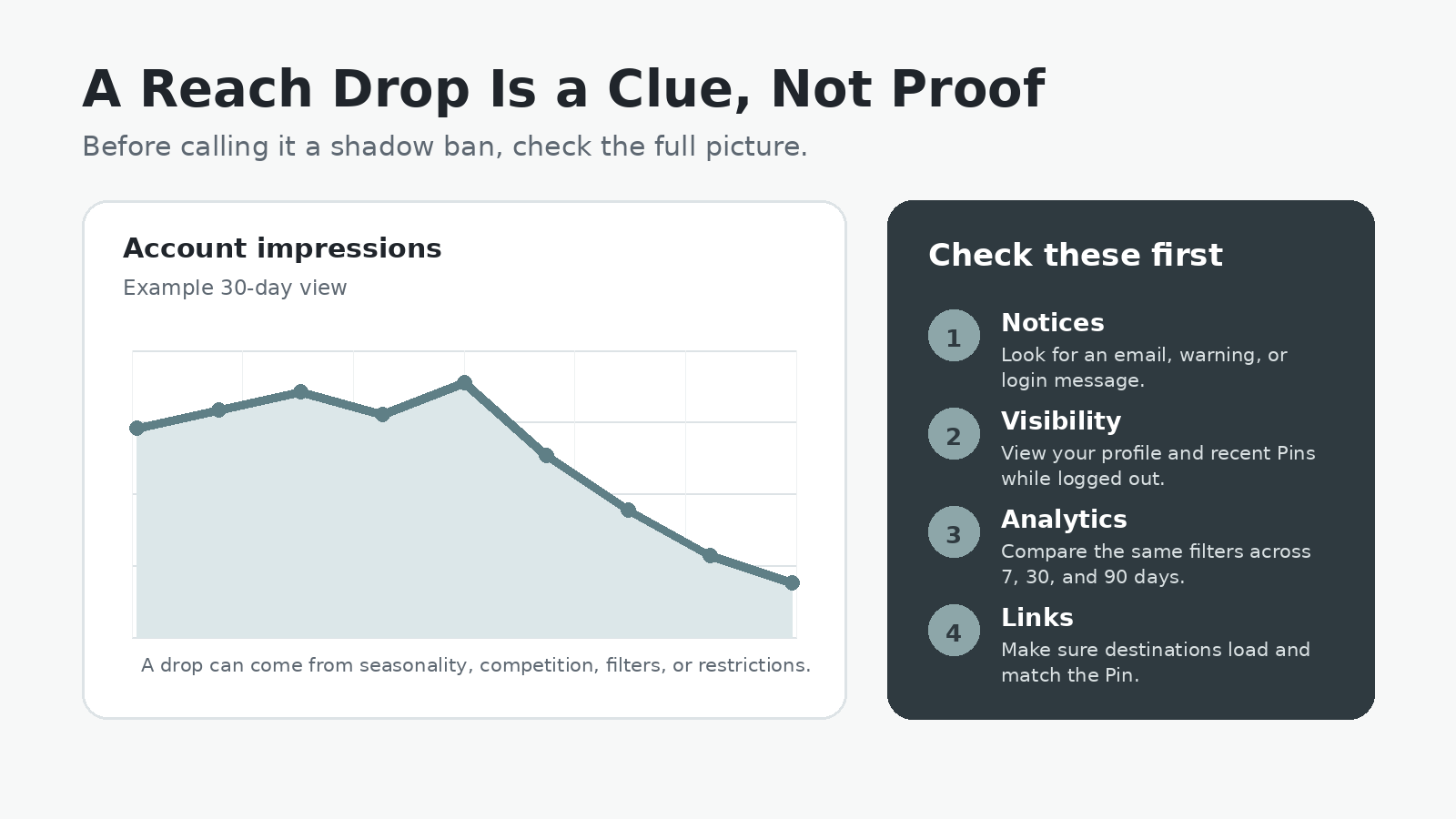
Use several clues together before deciding that the account has been restricted.
Common Workarounds That Usually Do Not Work
When reach drops, the internet is full of dramatic fixes. People may tell you to delete every recent Pin, change your username, use a VPN, create a brand-new account, stop posting for exactly fourteen days, or upload even more Pins to “wake up” the algorithm.
The problem is that none of those actions is a reliable cure. Deleting everything removes useful history, extra accounts can look suspicious, and flooding Pinterest with duplicate content can trigger the same spam systems you are trying to avoid. There is also no universal shadow-ban timer. A temporary activity block, a removed Pin, an account deactivation, and a normal decline in reach are different problems, so they need different solutions.
What You Can Do to Recover
Start with the problem you can actually confirm. If Pinterest shows a temporary activity error, stop repeating the action and give it time to clear. If the account has been deactivated, use the appeal process. When the account is active but reach has fallen, clean up anything that looks risky and return to a normal posting routine.
- Pause repetitive actions. Do not keep clicking or posting when Pinterest is already showing an error.
- Disconnect risky automation. Stick with Pinterest-approved tools and avoid anything that behaves like a bot.
- Review recent Pins. Look for duplicates, irrelevant keywords, broken links, redirects, or content that does not match the landing page.
- Fix only clear problems. Do not erase the entire account just because impressions dropped.
- Return to steady publishing. Post fresh, useful Pins at a reasonable pace and save them to relevant boards.
- Track the account for several days. Hourly changes can make a normal slowdown feel much worse than it is.
- Contact Pinterest Support when needed. Include your account URL, affected Pin URLs, dates, screenshots, and the exact error message.
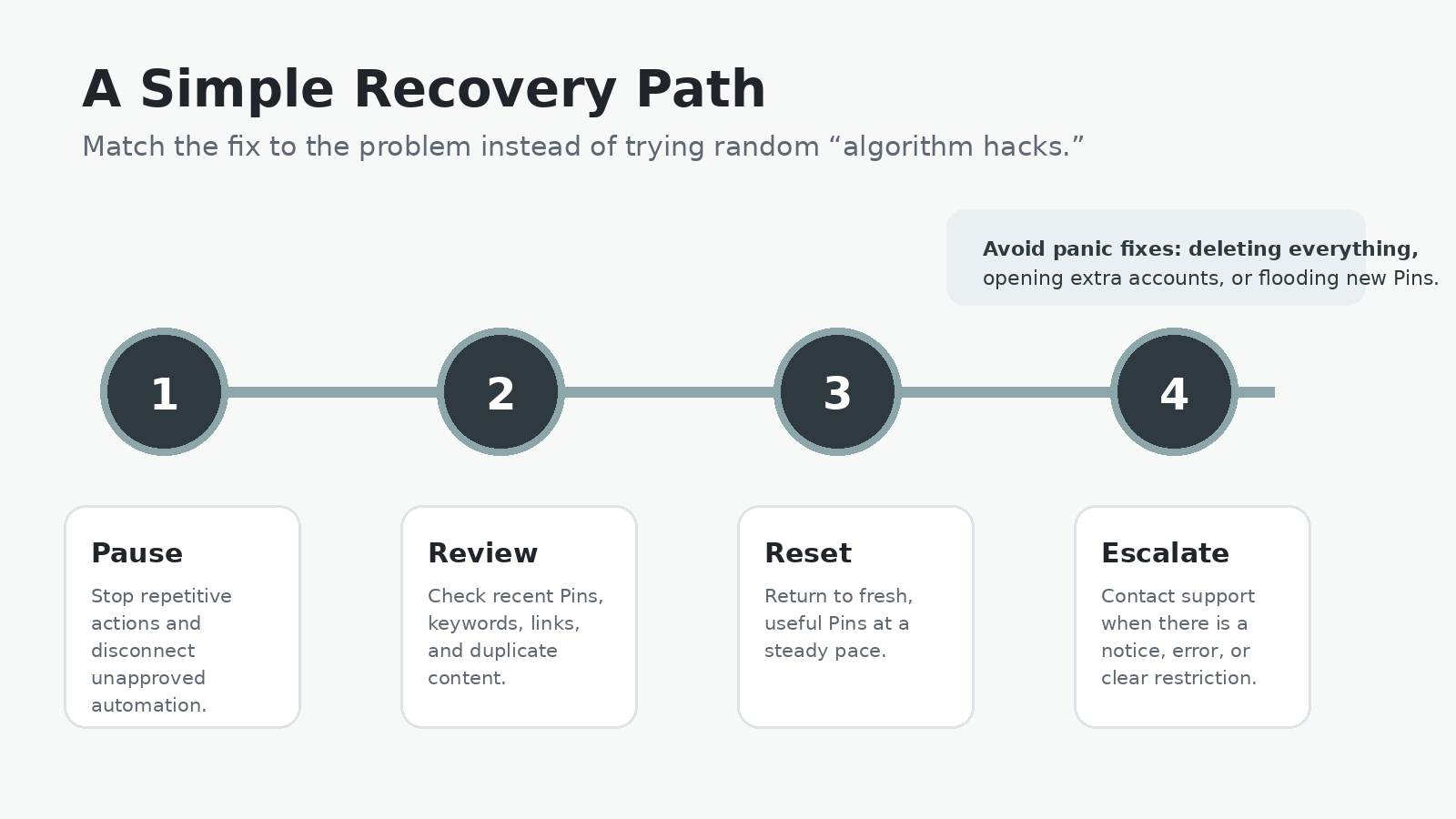
A calm recovery plan is usually safer than trying random “algorithm hacks.”
|
A simple support message: “My account is still active, but beginning on [date], my published Pins stopped appearing normally and impressions dropped across the account. I reviewed my links and recent content and did not find an obvious problem. Could you check whether a restriction or technical issue is affecting the account? Here are the affected Pin URLs and screenshots.” |
|---|
How to Avoid the Problem in the Future
Once things settle down, keep your account boring—in a good way. Pinterest should see a real creator sharing useful content, not a machine repeating the same actions as quickly as possible.
- Create fresh Pins. New images and useful ideas are safer than repeatedly saving duplicates.
- Keep keywords honest. Use words that clearly match the Pin, board, and landing page.
- Post at a steady pace. Avoid sudden bursts of hundreds of repetitive actions.
- Use approved tools. A scheduler should work with Pinterest rather than trying to work around it.
- Check the basics each week. Review your email, links, and Analytics so you catch small problems early.
The Main Thing to Remember
A bad week does not automatically mean Pinterest secretly punished your account. Sometimes there is a real restriction, sometimes there is a temporary block, and sometimes a Pin simply stopped performing.
Check the evidence, avoid panic fixes, correct anything that genuinely looks risky, and contact Pinterest when the account notice or data points to a platform issue. It may not feel as exciting as a viral “one weird trick,” but it is much less likely to damage the account you are trying to save.
Helpful Official Pinterest Resources
- Pin performance and distribution
- Prevent rate-limit blocks
- Account deactivation and appeals
- Pinterest Community Guidelines
- Missing Pins or boards
Thanks for Reading!
I really hope you found this post valuable. If you have a question or a topic you would like me to cover, you can reach me at theoleinemann8@gmail.com.
Now it is time for our sponsor. This post is sponsored by MerivoFlow’s Scheduler, a lightweight Pinterest scheduler with an unlimited scheduling time frame and a content calendar view for $8 per month. It is an affordable option for creators who want to plan ahead without paying enterprise-level prices.
Interested? Check out MerivoFlow Tools for more information.
Get notified when a new post drops
Subscribe to get an email whenever we publish a new Pinterest growth guide. No spam, unsubscribe anytime.